

How to avoid learning APA style
One of the things that all psychology students learn is how to format a document in APA style. A quick Google search reveals many websites devoted partly or solely to helping people with their spacing, periods, and italics. Psychology journals require that authors adhere to the standard style when they submit papers. As a psychologist, I've submitted many such papers, but I have a confession to make. I do not own an APA manual. I never learned APA style.
Why is learning APA style a waste of time, especially in the 21st century? The simple answer is that format and style should be done by computer software! If you think about a book, manuscript, paper, or website — really, any document that contains information — there are two “parts” of the document. There is the information itself (the words), and then there's the style in which that information is presented. The same information can be presented in many different styles, and a single style can be reused for many different purposes. Theoretically, if you can supply the proper information, computer software can give that content back to you in any style you like. This is in fact how much of the modern web works. I won't get into the reasons why psychology journals still think it is 1950, but it has something to do with an evil piece of software called Microsoft Word. What I would like to tell you about is how you can avoid learning APA style by taking advantage of software that properly respects the difference between information and style. I'll start by showing you how to avoid learning how to format APA citations. Theoretically, what we need is software that stores bibliographic information, formatting it in whatever style we want whenever we ask. There are several software packages that can do this. I personally use a software called Bibtex, but this can be difficult to use for the beginner. I will demonstrate how to use the Zotero software for managing your citations.
Zotero: a citation manager
Zotero is software that you install on your computer and helps you track your citations. Part of the software is a plugin for your browser that interfaces with databases like PsycInfo and JSTOR (or whatever databases you use) to enable saving bibliographic info and PDFs with a single mouse click. Another part helps you search and organize your citations, make notes, and, of course, create bibliographies.
Preliminaries
Before we learn how to use Zotero, we need to take care of some preliminaries.
-
Now install Zotero stand-alone.
-
Finally, if you are using Firefox you can optionally install the Word or LibreOffice plugin to use Zotero with your word processor
Using Zotero
Once you've installed everything, start the stand-alone Zotero for the first time. You should see a window something like this:
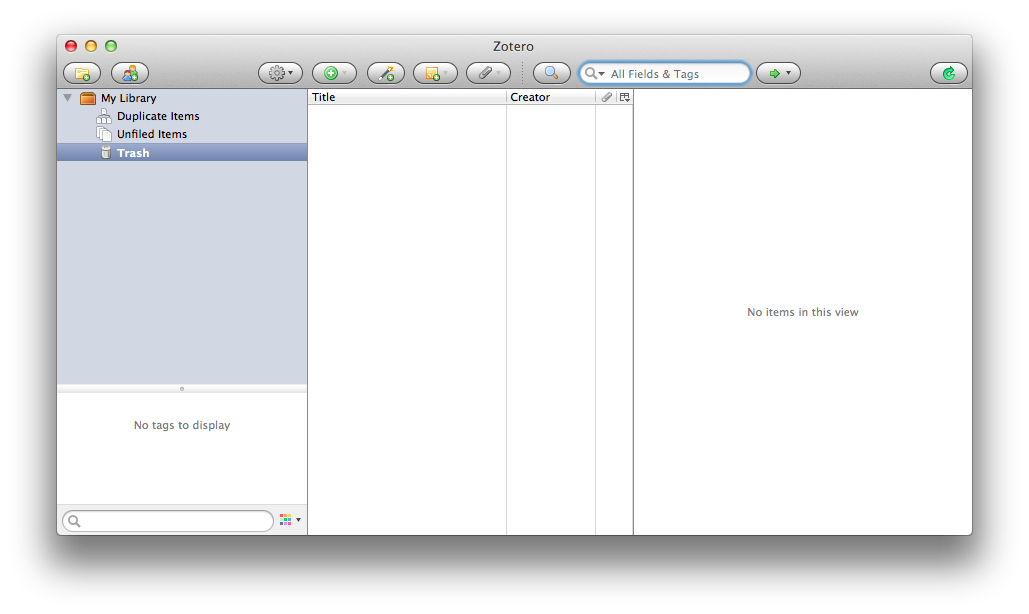
You may have a few “example” entries in your Zotero already; you can leave them or delete them, as you like. Leave Zotero open and open up your browser. Go to PsycInfo (University of Groningen students and faculty can click here; others will have to go through their own university portal). Search for your favorite paper, or, if you don't have one, search for “unskilled and unaware of it”.
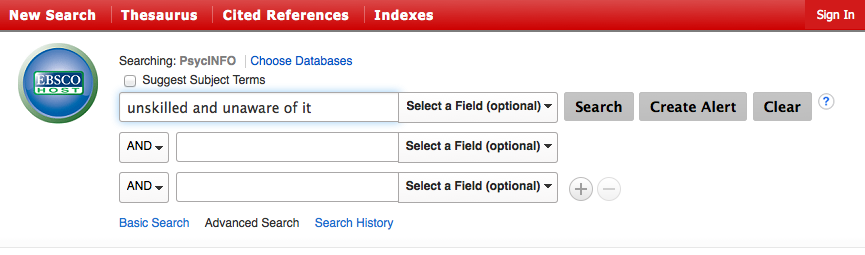
If your search yields multiple hits, click on one of them to see its complete record. When you enter the record, your browser address bar should change to contain a paper-like icon; see the image below on the right, to the left of the star:

This icon indicates that Zotero can strip the information from this page, and add it you your database. If instead you see an icon that looks like a folder — for instance, on a search result page — this means that Zotero can save multiple records at a time for you. Click the icon, and Zotero will gather as much information as it can, and create an entry in your Zotero database. As it does, you may see a window like this:
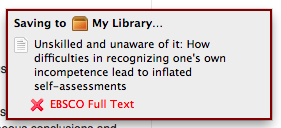
Now move to your Zotero stand-alone program, and notice that an entry has been added for the article. All the information about that article is in your personal database.
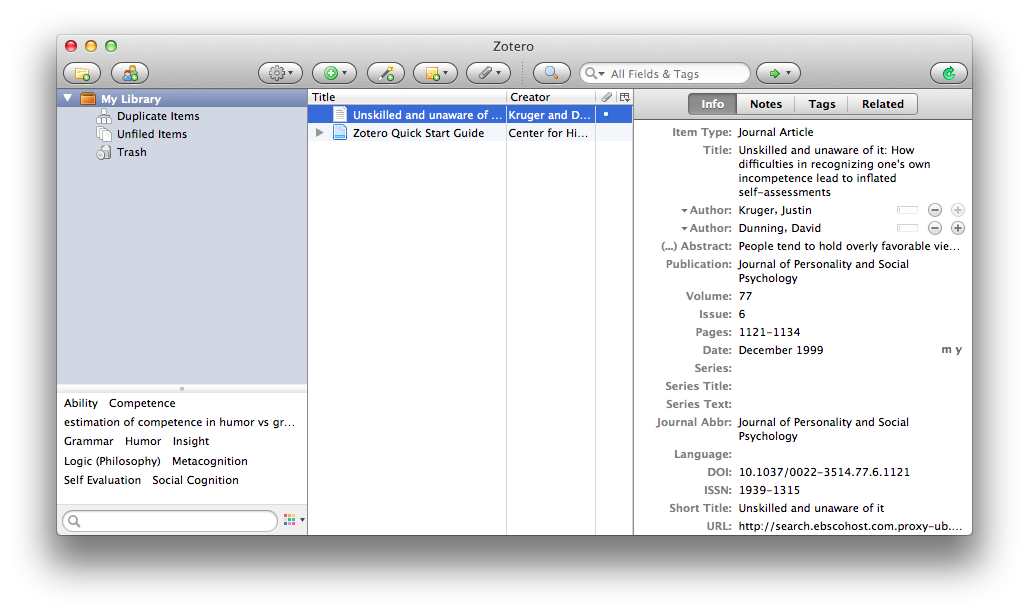
If you were downloading this article as part of a research project, you could save the PDF in the record, add notes containing your thoughts about the article, add tags to help organize your references, and much more. Zotero is a great way to organize your own research projects. For the purposes of this blog, we are interested in obtaining an APA-formatted bibliography. Once the items are in your database, this is easy! For the purposes of demonstration, I added many items to my own database. To create a bibliography, select all the articles you want in the bibliography and right-click. Then, select “Create Bibliography from items…”
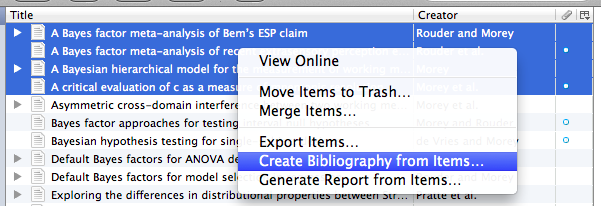
and you'll get a new window allowing you to select a style. Select “American Psychological Association 6th edition”:
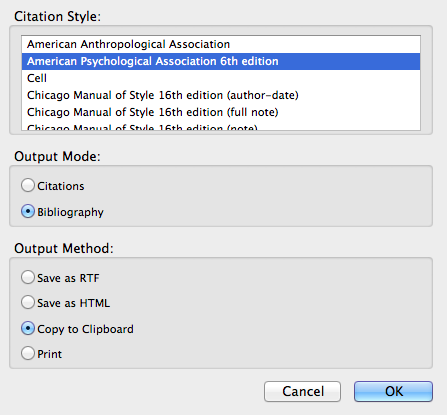
and then choose how you want to output them. Save yours to an HTML file, and then open the HTML file. The file should contain automatically formatted, APA-style references. The results of my output are below:
Morey, R. D. (2011). A Bayesian hierarchical model for the measurement of working memory capacity.
Journal of Mathematical Psychology
,
55
(1), 8–24. doi:10.1016/j.jmp.2010.08.008 Morey, R. D., Morey, C. C., Brisson, B., & Tremblay, S. (2012). A critical evaluation of c as a measure of mnemonic resolution.
Journal of Experimental Psychology: Human Perception and Performance
,
38
(4), 1069–1072. doi:10.1037/a0027335 Rouder, J. N., & Morey, R. D. (2011). A Bayes factor meta-analysis of Bem’s ESP claim.
Psychonomic Bulletin & Review
,
18
(4), 682–689. doi:10.3758/s13423-011-0088-7 Rouder, J. N., Morey, R. D., & Province, J. M. (2013). A Bayes factor meta-analysis of recent extrasensory perception experiments: Comment on Storm, Tressoldi, and Di Risio (2010).
Psychological Bulletin
,
139
(1), 241–247. doi:10.1037/a0029008
Interfacing with Word or LibreOffice
It is possible to use Zotero directly in Microsoft Word or LibreOffice. This is quite convenient, but is beyond the scope of this blog post (mostly because I think Microsoft Word is a terrible program and do not condone its use). However, the YouTube video below will show you how to use it. https://www.youtube.com/watch?v=aMkccKZ0Hio
Wrap-up
These days, there's no reason to learn how to format APA citations, because there are many programs that will do it for you. Zotero is software that will allow you to store, organize, search, and create bibliographies from your stored citations. In addition to being convenient for creating bibliographies, software like Zotero is an important part of organizing your research. If you'd like to know more about using Zotero, there are many tutorials and screencasts on the Zotero website. Zotero is not the only software out there. Other possibilities, some of which are free, include: